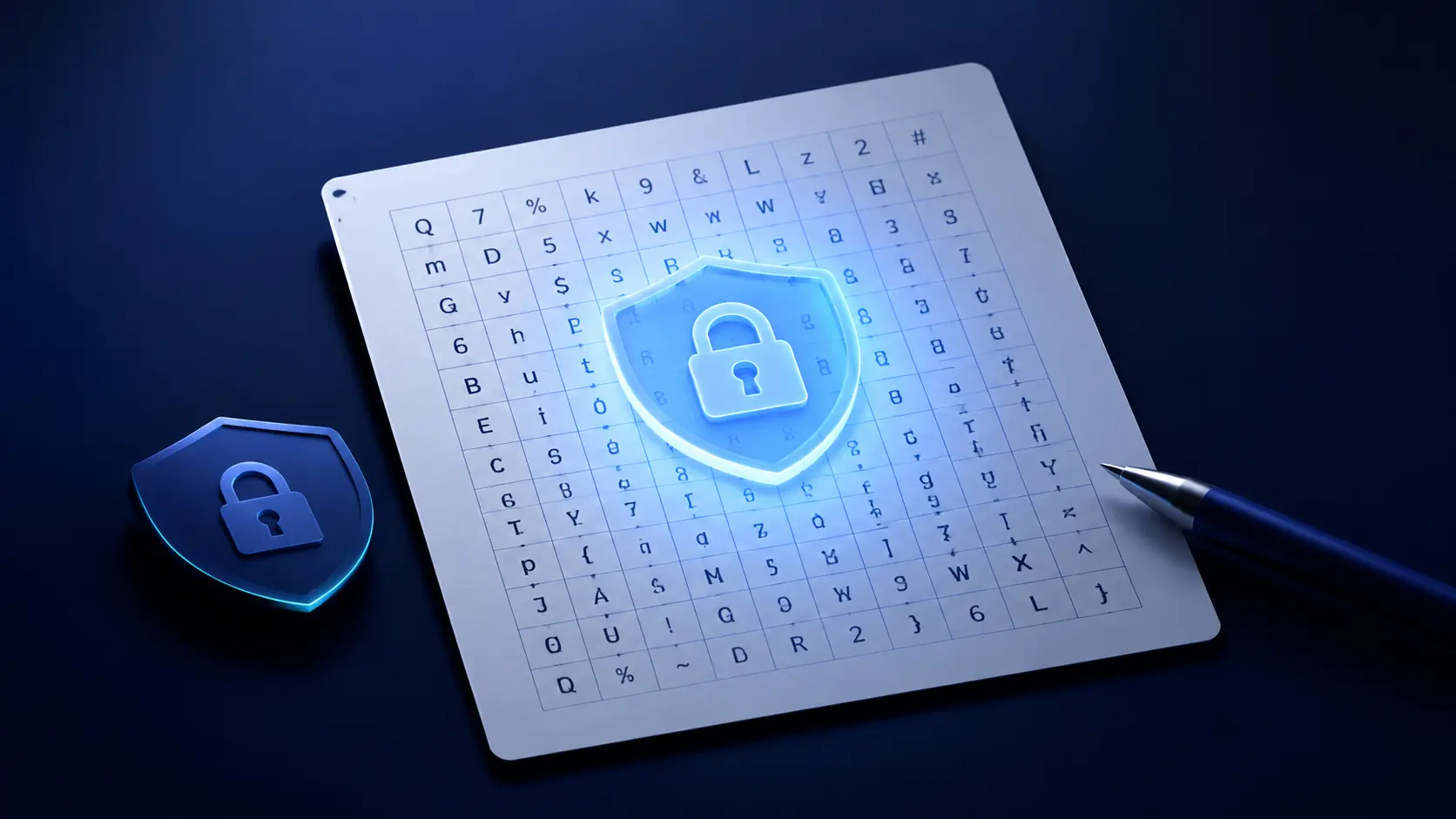
Remembering long, different passwords for every service is not always easy. Writing them out in full on a sheet may seem practical, but it immediately exposes the credential to anyone who finds the paper. This random grid is designed as an offline aid: it contains randomly generated characters, but it does not directly contain the complete password.
The idea is to choose a personal sequence within the grid and use the characters you encounter to build a password. The sequence should be easy for you to remember but difficult for someone looking at the sheet to guess.
Before you start: an important clarification
The grid does not make a password automatically secure and does not remove the risk of theft, loss or someone seeing the sheet. Security depends on the randomness of the characters, length, password uniqueness, secrecy of the chosen rule and the way the paper is stored.
- Do not use the grid as a replacement for a password manager for all important accounts
- For your main email, online banking, administration and sensitive services, consider a password manager, multi-factor authentication or a passkey
- Do not photograph the sheet or upload it to the cloud, chats or social media
- Treat the sheet as a credential: whoever has it could derive useful information
Generate your grid
Choose the character groups you want to use, decide on the grid structure and customise the colours. To avoid reading errors, you can exclude ambiguous characters such as O, o, 0, I, i, l and 1. When you are finished, read the warning in the component and tick the confirmation box before generating or downloading the sheet.
Interactive tool
Random grid generator
Local processing and privacy
This free service runs locally in the browser of the PC, tablet or smartphone using it. The characters are generated and organised on the user's device: the component does not send the created grid to TekCare360 or save it in one of our archives. For this reason we cannot physically have a copy of the table generated by our tool. As with any web page, opening the site normally may involve the hosting service, but the grid produced by the component remains in the user's browser and device.
How to use the grid
The grid is a set of characters from which you can derive a sequence according to a private rule. You do not always need to start from the same point, and it is not advisable to use an obvious rule such as simply reading the first row from left to right.
Be careful with Annual 12×31 mode
In Annual 12×31 mode, the rows refer to the initials of the months and the columns represent days. Do not therefore use the sheet by starting from a birthday, wedding date, anniversary or other personal occasion: someone who knows that date might quickly guess the starting point and direction. In this mode, the months are only a visual reference and must not become a key based on events in your life.
- Choose a starting position you can remember without writing it next to the sheet
- Read the characters horizontally from left to right or from right to left
- You can read vertically from top to bottom or from bottom to top
- Decide in advance how many characters to use and keep the password long enough
- Use a different rule for different accounts and never reuse the same password
- Do not share the position, direction or rule you use with other people
For example, you could choose a starting cell linked to a non-public memory and read eight or more characters in a chosen direction. The example must not become a fixed rule for all passwords: the important thing is for the method to remain personal, unpredictable and unwritten alongside the grid.
Do not use birthdays or personal information
A password can look complex while still being easy to guess. Birthdays, wedding dates, anniversaries, names of family members or pets, addresses, phone numbers, number plates and words connected to your business are among the first elements that may be tried in a targeted attack.
- Avoid birthdays, weddings, anniversaries, years and sequences such as 1234 or 2026
- Avoid names, nicknames, locations and words published on social media
- Do not merely replace a few letters with predictable symbols
- Do not use the same password for email, social media, shopping and work services
- Do not rely on a phrase or direction that someone who knows you could guess
Length matters more than appearance
Uppercase letters, lowercase letters, numbers and symbols can increase the number of possibilities, but a short, predictable password remains weak. In general, it is better to use a reasonably long sequence, generated without common words and never reused. The password must also be compatible with the service: some sites limit length or the symbols they accept.
The grid should not become an exercise in creating passwords that are impossible to recover. If the method is too complicated, you may end up writing the rule next to the sheet or always reusing the same pattern, cancelling part of the benefit. Easy for you to remember does not mean obvious to others.
Store the sheet like a credential
The sheet does not necessarily contain the complete password, but it can still help someone reconstruct it. Keep it in a private, dry place that is not accessible to visitors, colleagues or people who should not know your credentials. Avoid leaving it near the computer or inside an easily recognisable case.
- Do not leave the sheet on the desk or next to the keyboard
- Do not store it together with a description of the rule used
- Destroy previous versions when generating a new grid
- If the sheet is lost or photographed, change any passwords that could have been derived
- Consider a closed case or a place separate from the protected device
Paper grid or password manager?
A password manager generally remains the most convenient solution for creating, storing and filling in unique, long passwords. It offers search, synchronisation and tools for checking credential reuse, but it requires correct configuration and protection of the main account.
The grid can be useful when you want an offline aid, do not always want to rely on a device or need an analogue method for some less critical credentials. It is not a magic solution: compared with writing a complete password on paper, it can reduce immediate exposure, but the risk is not eliminated.
Our advice
Use the grid with a personal rule, long and always different passwords. Do not include predictable personal information, do not reuse sequences and store the sheet with the same care you would give a key. For important accounts, add a second factor or passkey and prefer a reliable password manager when it is the most suitable solution.